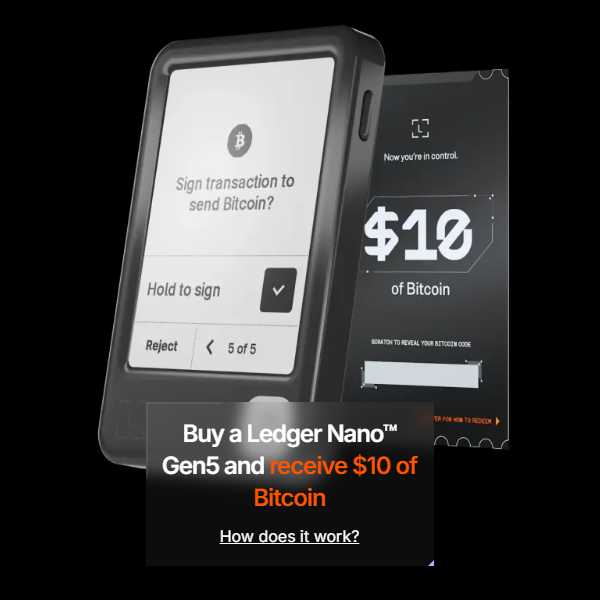
How can I buy cryptocurrencies like Bitcoin with the Ledger Wallet?
Those who want to invest in cryptocurrencies are often faced with the decision between convenience and security. The Ledger Wallet offers a solution that combines both: You can buy coins directly via the Ledger Wallet and benefit from the maximum security of your hardware wallet.
Buy cryptocurrencies with the Ledger WalletWhy you should buy crypto directly through Ledger
Before we get to the instructions, it is worth taking a look at why this route is so recommended. The mantra “Not your keys, not your coins” is crucial here.

Immediate control over your assets
If you buy cryptocurrencies on a conventional exchange, the coins technically only belong to you when you withdraw them. The exchange manages the keys. However, if you buy via the Ledger Wallet, the coins are sent directly to your own address, which is protected by the hardware wallet. So you have full, private control from the very first second and are independent of the solvency of an exchange.
The protection of the Secure Element
Your Ledger is more than just a USB stick. It contains a special chip, the so-called secure element. This chip is like a tiny, armored vault in your device that stores your private keys completely isolated from the rest of the system. Even if your computer was infected with viruses during the purchase process, attackers would not be able to access your keys as they never leave the device.
Everything in one place
With the Ledger Wallet app (formerly Ledger Live), you don’t have to switch between different websites. You can check prices, compare providers and process the purchase directly – an all-in-one platform for your digital assets.
Instructions: How to buy cryptocurrencies with the Ledger Wallet using Bitcoin as an example in 5 steps
The purchase process in the ledger environment is realized by trusted third-party providers that are integrated into the app. Ledger itself does not sell coins, but offers you the secure interface.
Prerequisites
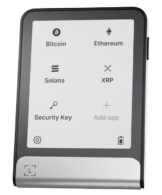
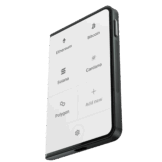
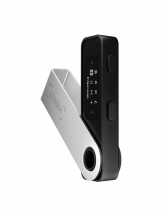
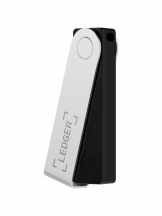
- You have a Ledger hardware wallet (e.g. e.g. Ledger Nano X, Stax or Flex).
- The Ledger Wallet app is installed on your PC or smartphone.
- Your device is set up and you have securely written down your 24-word recovery phrase (Secret Recovery Phrase).
Step 1: Preparation in the ledger wallet
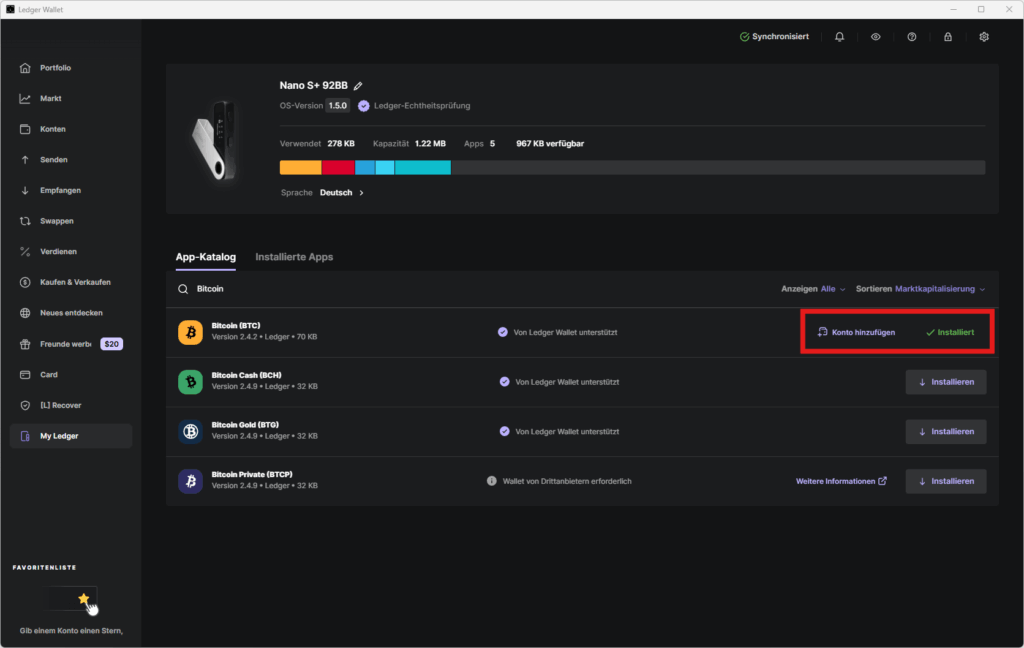
Open the Ledger Wallet on your smartphone or PC. In order to receive and manage your desired cryptocurrency, the corresponding app must be installed on your hardware wallet, in this example the Bitcoin app. The operating system (LedgerOS) isolates apps from each other to ensure maximum security. Create a Bitcoin account in the app if you don’t already have one.
Step 2: The “Buy” menu
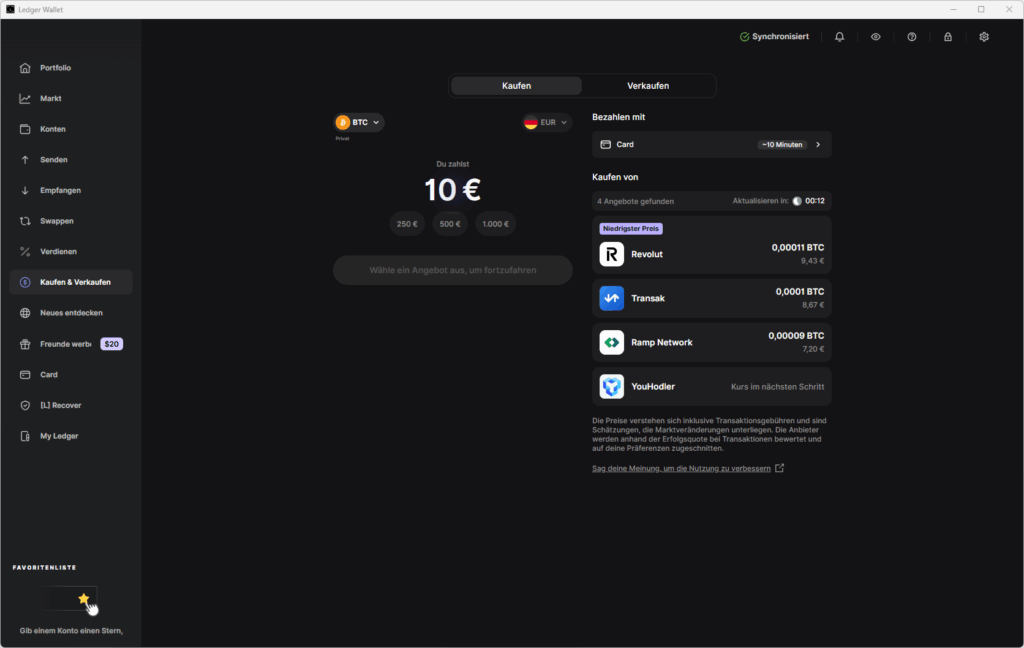
Navigate to the “Buy & Sell” section in the left-hand menu bar. Here you get access to a variety of crypto services. Ledger supports the purchase of Bitcoin, Ethereum and thousands of other coins.
Step 3: Select currency and amount
In the drop-down menu, select Bitcoin (BTC) as the cryptocurrency you want to buy. Enter the amount in your fiat currency (e.g. Euro). Select your country so that Ledger Wallet shows you the right options for your region.
Step 4: Compare and verify providers (KYC)
Ledger Wallet now shows you various partners such as Revolut, MoonPay, or Coinify. You can choose providers based on the best rate, fees and your preferred payment method. Depending on the provider, you can pay by credit card, bank transfer, Apple/Google Pay or sometimes even via Revolut integrations.
As these are financial transactions, you will need to create an account with most partners and carry out an identity check (KYC – Know Your Customer). Ledger itself does not store this data; this is done directly via the partner.
Step 5: The safety confirmation on the device
This is the most important step that distinguishes the Ledger Wallet from a pure software wallet. Connect your Ledger Hardware Wallet to your computer or smartphone. The Ledger Wallet app will ask you to verify the transaction on the display of your Ledger device. Trust only the display of your ledger! Computer screens can be manipulated. If the transaction data on the ledger matches the data in the app, you confirm this by pressing a button on the device. By pressing this button, you give the Secure Element permission to sign the transaction. Your private keys never leave the secure chip.
After successful payment, the bitcoins are sent by the provider directly to your address on the blockchain and appear shortly afterwards in your Ledger Wallet overview.
No Comments found